CSV Agent
Convert between CSV files and structured data.
What it does
- Reads CSV content into structured data or produces CSV from objects and arrays.
- Extracts just the header row for fast column inspection without loading the full file.
Common uses
- Import partner CSV feeds into your workflows.
- Generate CSV exports for reporting or file deliveries.
- Inspect headers before mapping columns to validate file structure.
Key actions
Parse CSV
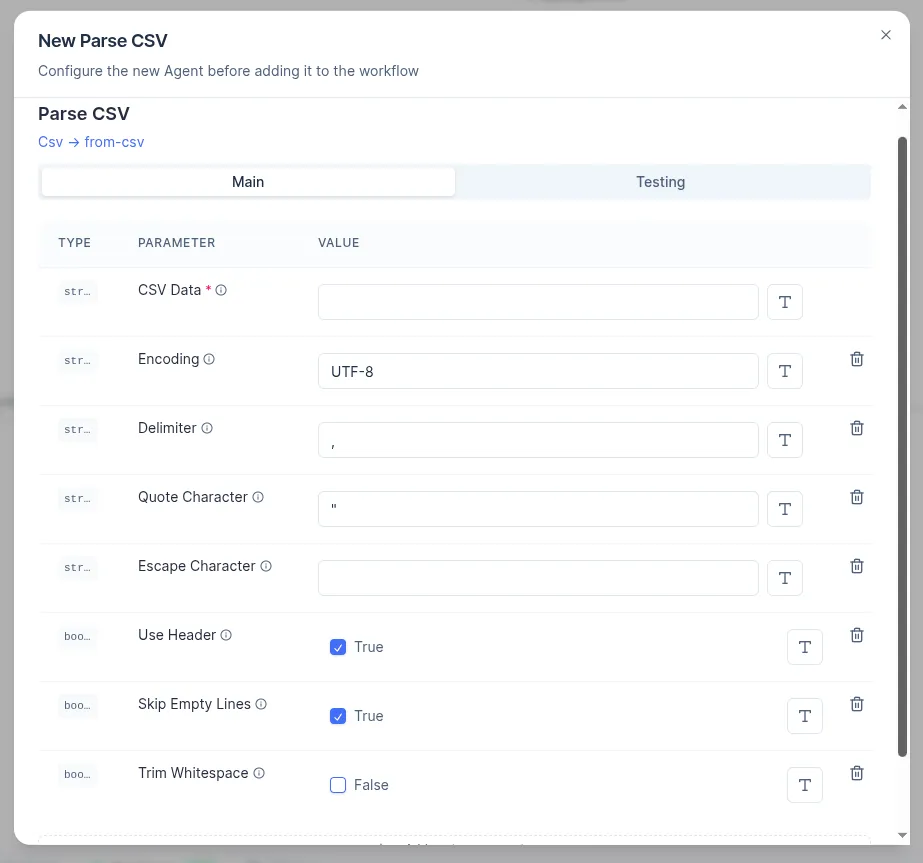
Parse CSV with configurable delimiter, encoding, quote or escape characters, and header handling. Reads a CSV input and returns structured rows. When Use Header is enabled, each row becomes an object keyed by column name; otherwise rows are returned as arrays of values.
Parameters
- CSV Data (required) — the CSV content to parse. Accepts a plain text string, a base64-encoded string.
- Encoding — character set of the source file. Default:
UTF-8. Change toWindows-1252,ISO-8859-1, or other encodings for legacy files from partners. - Delimiter — character that separates columns. Default:
,. Common alternatives:;(European locales),\t(tab-separated),|. - Quote Character — character that wraps field values containing the delimiter or line breaks. Default:
". - Escape Character — character used to escape special characters inside a quoted field. No default; set to
\or"depending on the file format. - Use Header (boolean, default
true) — when enabled, the first row is treated as column names and each subsequent row is returned as a named object. Disable to receive all rows as plain arrays. - Skip Empty Lines (boolean, default
true) — ignores blank lines in the source file. Disable only if empty rows carry meaning in the data. - Trim Whitespace (boolean, default
false) — strips leading and trailing spaces from every field value. Useful when the source file has inconsistent spacing around delimiters.
Get CSV Header
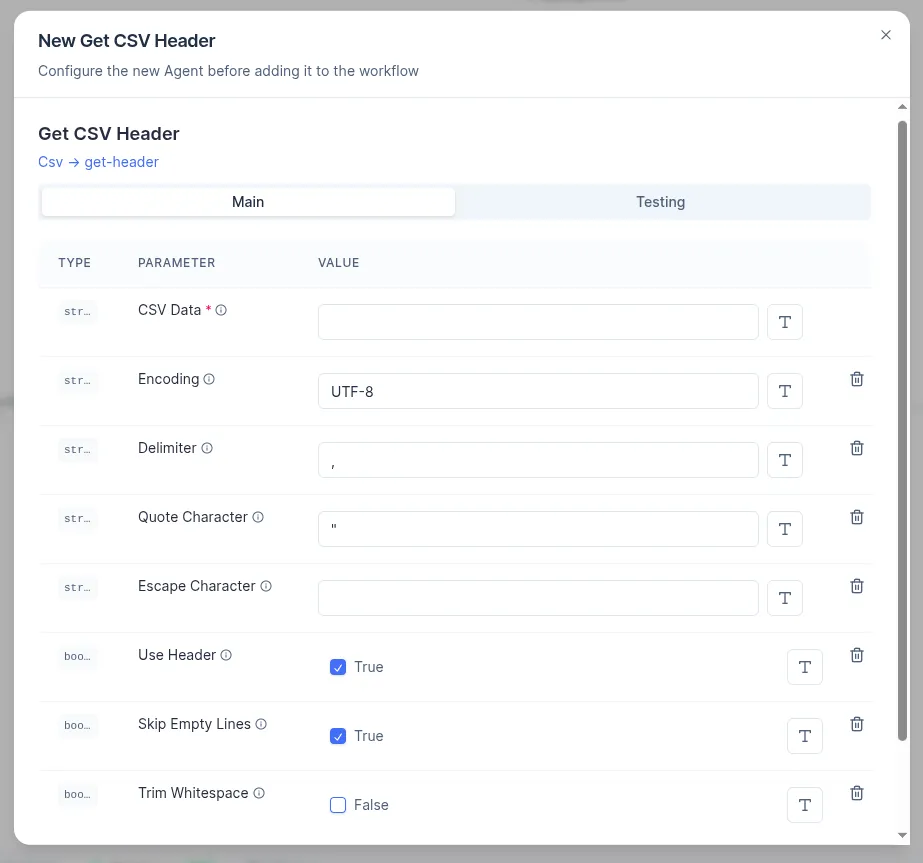
Return just the header row for quick inspection. Returns the list of column names. Useful for inspecting structure before processing or for building dynamic mapping logic.
Parameters
- CSV Data (required) — the CSV content to inspect. Accepts a plain text string, a base64-encoded string.
- Encoding — character set of the source file. Default:
UTF-8. - Delimiter — column separator character. Default:
,. - Quote Character — character wrapping field values. Default:
". - Escape Character — character for escaping special chars inside quoted fields. No default.
- Use Header (boolean, default
true) — when enabled, the first row is interpreted as column names and returned as the result. Disable to return the raw first row as an array. - Skip Empty Lines (boolean, default
true) — skips blank lines before the header if any are present. - Trim Whitespace (boolean, default
false) — strips spaces from each column name value.
Generate CSV
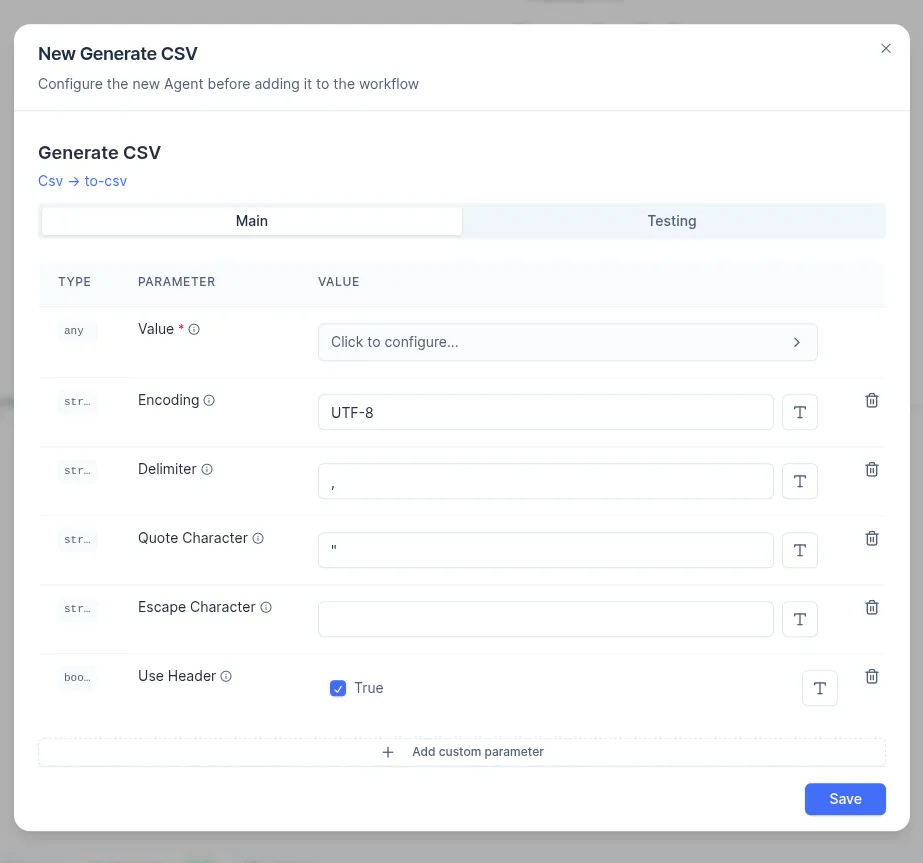
Convert arrays or objects back to CSV with an optional header row. The output can be written to a file, uploaded via SFTP, or attached to an email.
Parameters
- Value (required) — the data to serialize. Can be:
- a reference to a scenario input (e.g. an array passed in when the workflow starts),
- the output of a previous step (e.g. a transformed list of order objects),
- a composite object assembled from multiple fields using the mapping editor.
- Encoding — character set for the output file. Default:
UTF-8. - Delimiter — column separator character in the output. Default:
,. - Quote Character — wraps field values that contain the delimiter or line breaks. Default:
". - Escape Character — escapes special characters inside quoted fields. No default.
- Use Header (boolean, default
true) — when enabled, object keys are written as the first (header) row. Disable when the consumer expects a header-less file.
Combining with other agents
SFTPagent: download a file → Parse CSV, or Generate CSV → upload to a partner server.HTTPagent: fetch a CSV from a remote URL → Parse CSV.Transform/Text Tools: reshape or filter rows between Parse and Generate steps.Fileagent: pass generated CSV content as a binary file attachment.
Setup notes
- Make sure
EncodingandDelimitermatch the source file to avoid misaligned columns or garbled characters. - Use Get CSV Header early in a workflow to validate that all expected columns are present before processing rows.
- When passing
Valueto Generate CSV from a previous step, ensure the data is an array of objects (for keyed output) or an array of arrays (for positional output).